List Your First Cards on eBay
From a fresh batch of cards to live eBay listings in three steps: create a collection, scan cards with AI, and publish.
Before you start
Make sure you have completed the Quick Start guide: eBay account connected, warehouse location set, and business policies configured.
Create a Collection
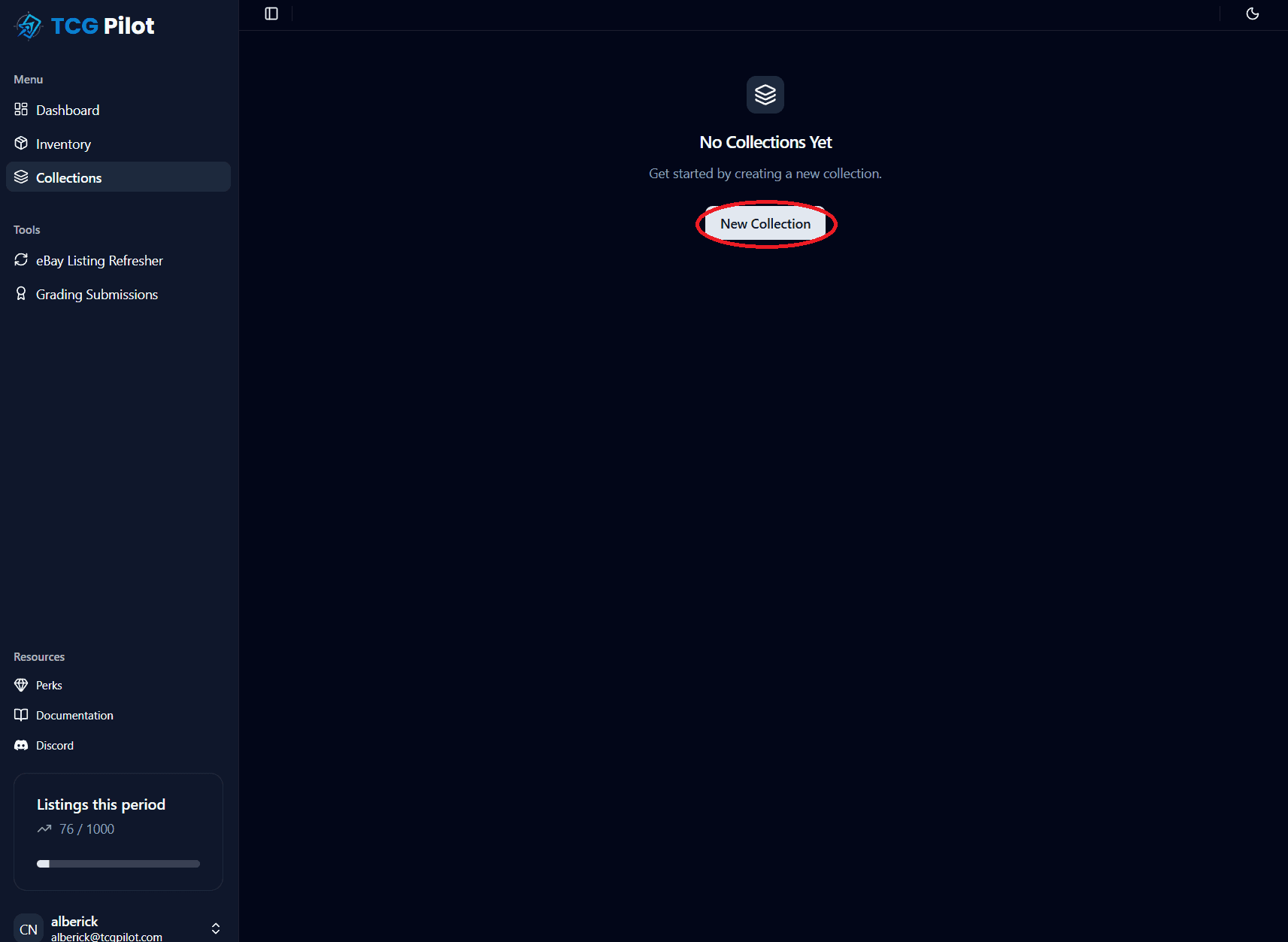
Group a batch of cards you purchased together.
Scan with AI
Photograph your cards and let TCGPilot identify them.
List on eBay
Review auto-priced listings and publish in one click.
Create a Collection
A Collection represents a batch of cards you acquired, typically from a single purchase or lot. All cards inside share the same acquisition cost, vendor, and marketplace source.
Collection fields
- •Collection Name (optional) — A label for this batch, e.g. "Pokemon 151 lot". Leave blank and TCGPilot generates a unique name automatically.
- •Seller's Name (optional) — Who you bought the cards from. Useful for tracking sources.
- •Marketplace (optional) — Where you sourced the cards (e.g. eBay, Facebook Marketplace, local shop).
- •Amount Paid — The total you paid for the lot. TCGPilot uses this to calculate your cost per card and estimate profit in Target Return pricing mode.
- •Date Purchased — Defaults to today.
💡 Tip: You can also update the collection name, amount, and other fields later by clicking the edit icon on the collection detail page.
Collection status
Each collection has a status that tracks where it is in your workflow. You can move it forward manually at any time:
| Status | Meaning |
|---|---|
| Draft | Being set up |
| Created | Ready to buy |
| Paid | Payment made |
| Received | Cards in hand, ready to scan |
| Listed | Cards live on eBay |
Scan Cards with AI Recognition
TCGPilot uses AI-powered recognition to match your card photos against the card database automatically.
Launch the scanner
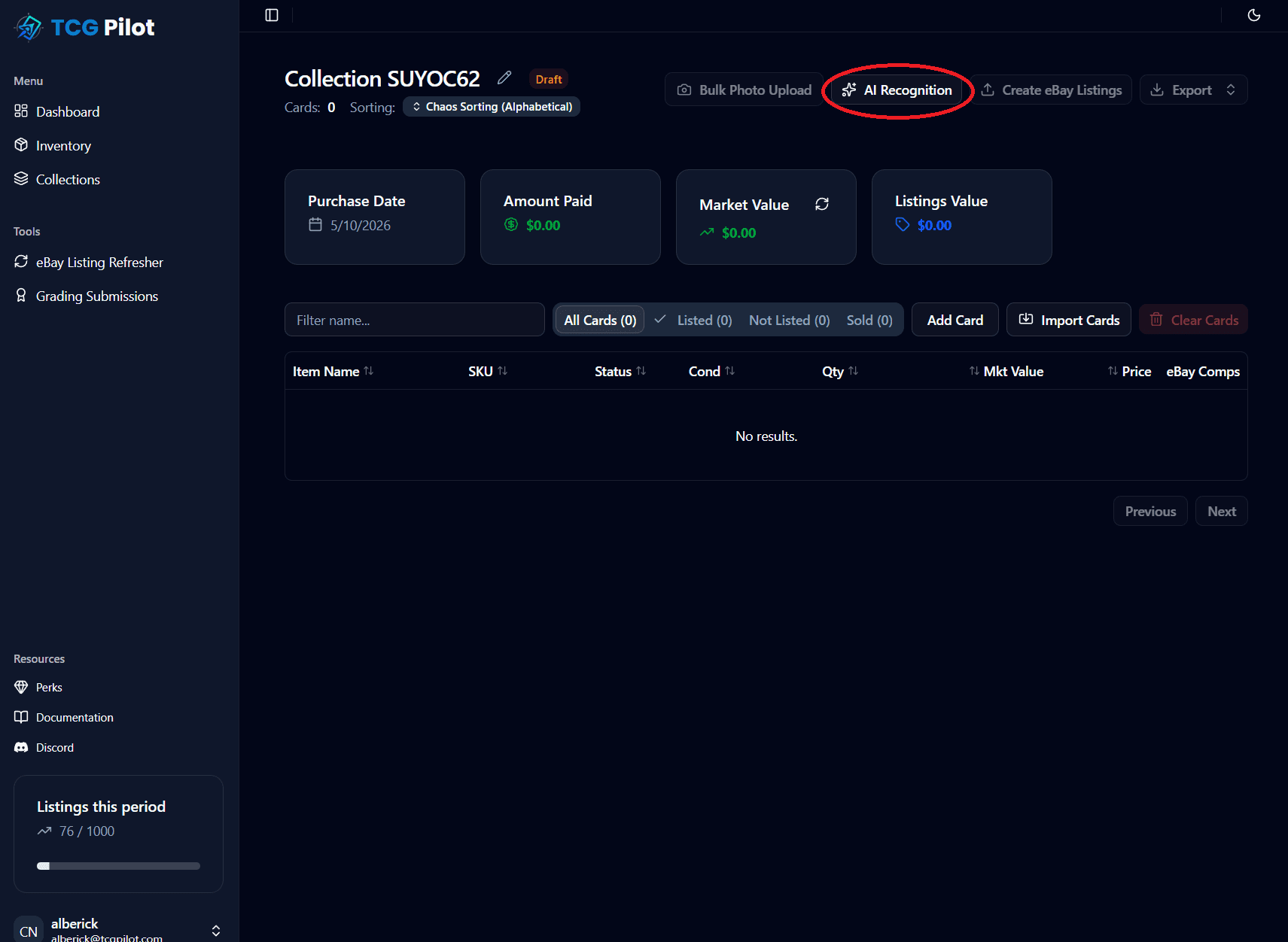
Open your collection and click the Scan with AI button (the icon in the toolbar). This opens the AI Recognition dialog.
Select a card category
Choose the TCG that matches your cards:
- •Pokémon — English and Japanese (language is auto-detected)
- •Magic: The Gathering
- •One Piece
- •Dragon Ball
- •Disney Lorcana
Choose an upload mode
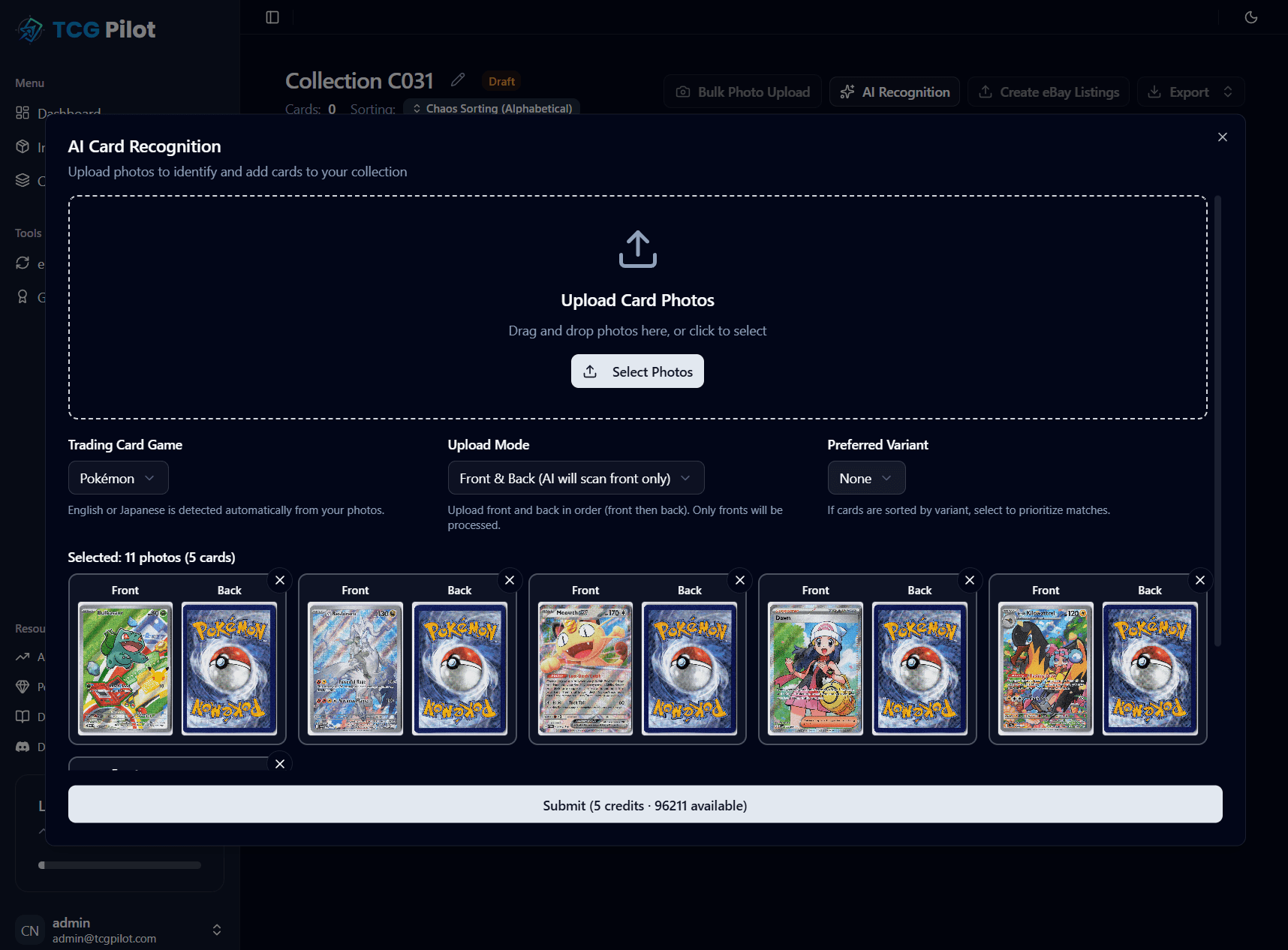
- •Front + Back (recommended) — Upload pairs of photos (front first, then back). The AI reads the front for identification and uses the back for listing images. Photos are sorted alphabetically so name them so the front always sorts first (e.g.
001_1.jpgfor the front,001_2.jpgfor the back). - •Front only — Faster when you only need one photo per listing.
Preferred variant
If you know all your cards are of one type, set a preferred variant (Normal, Reverse Holo, Cosmos Holo, etc.) to speed up the review step. You can still change individual cards during review.
Upload photos
Drag and drop image files into the upload area or click to browse. TCGPilot automatically optimizes photos before upload. Once you click Start Recognition, each card consumes one AI recognition credit.
Tips for best recognition accuracy
- Photograph cards on a plain, contrasting background
- Shoot straight-on — avoid angled or tilted shots
- Ensure the card name and number are fully visible and in focus
- Avoid glare from foil cards; use diffused lighting
- Minimum recommended resolution: 1000px on the shorter edge
Processing and confidence scores
TCGPilot shows real-time progress as each card is scanned. When complete, every card gets an OCR confidence score and a match confidence score:
| Confidence | Meaning | Action |
|---|---|---|
| High (85-100%) | Strong match | Safe to accept as-is |
| Medium (70-84%) | Likely correct | Review recommended |
| Low (0-69%) | Uncertain | Manually verify or re-photograph |
Review matches
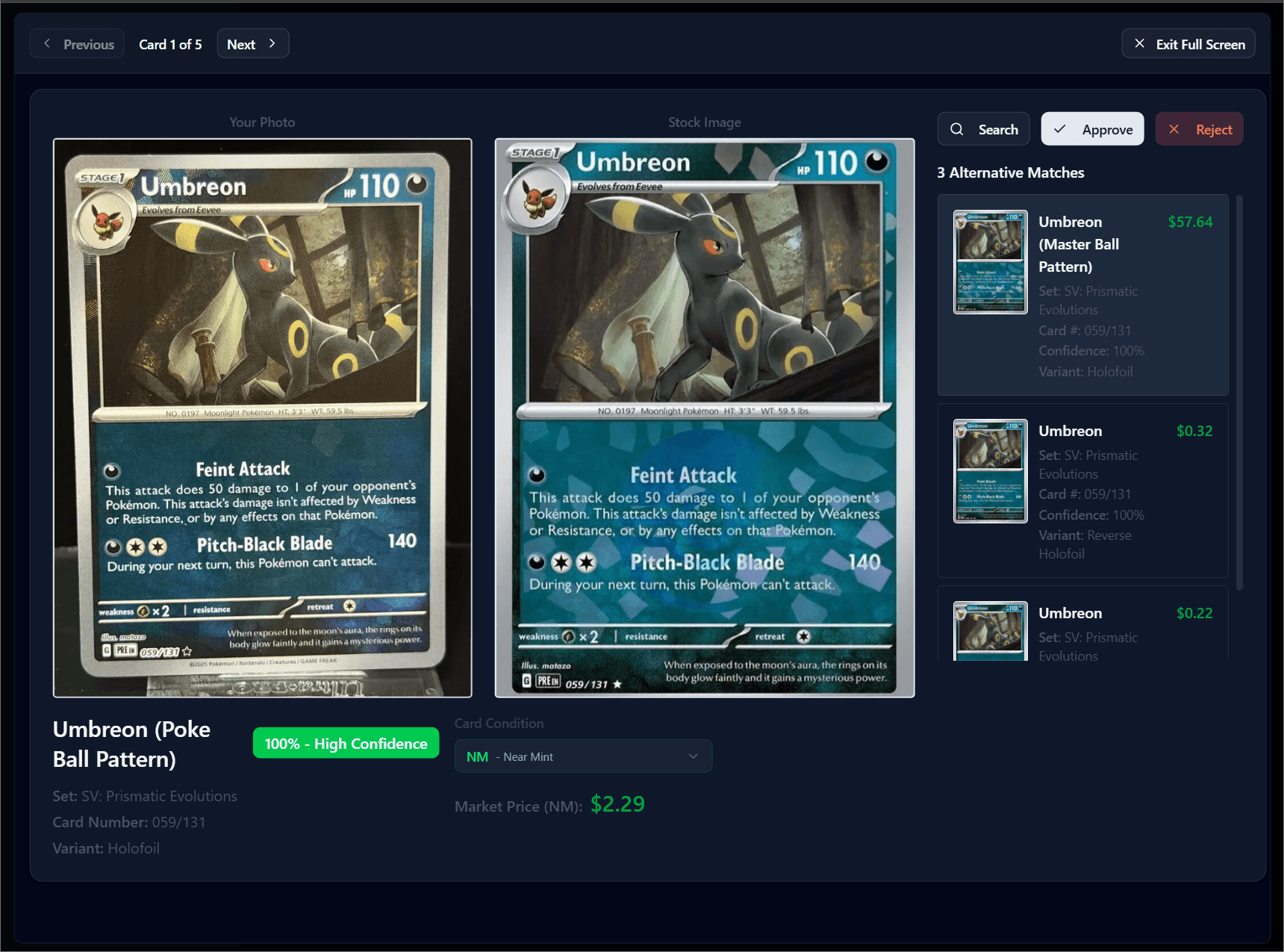
After processing, the review panel shows each card with its matched name, set, and variant. For each card you can:
- •Accept the match and add it to your collection
- •Change the variant if the card is a Reverse Holo, Cosmos Holo, etc.
- •Search manually to find the correct card if the AI missed
- •Skip a card to exclude it from the collection
💡 Tip: If you close the dialog mid-review, a banner will appear on the collection page so you can resume where you left off at any time.
List Cards on eBay
Once cards are added to your collection, TCGPilot fetches live eBay market prices and calculates a listing price based on your pricing rules. You can then publish all cards to eBay in one click.
Review prices before listing
The collection table shows each card with its current market value and calculated listing price. If a price looks off, check your pricing rules or adjust the card's condition by clicking its condition badge.
Publish to eBay
Click List on eBay from the collection toolbar. TCGPilot will:
- 1.Check that every card has at least one photo (you'll be warned about any missing photos)
- 2.Apply your eBay listing template (title format, item specifics, description)
- 3.Upload photos directly to eBay
- 4.Create a live listing for each card using your business policies (payment, returns, shipping)
- 5.Mark the collection status as Listed
Handling failed listings
If any listings fail (e.g. a photo was rejected by eBay or a required field is missing), a dialog will show the affected cards with the specific error. Fix the issue and re-run the listing for just those cards.
💡 Tip: You can configure your eBay listing template (title format, condition mapping, description) in Settings → eBay Listing Templates.
Cards are live!
Your cards are now listed on eBay. Repeat this workflow for each new batch you acquire.