Quick Start
Get started with TCGPilot in just a few simple steps.
Set Your Shipping Country
Before you start creating listings, you need to set your shipping country. This is important for calculating accurate shipping rates and displaying the correct marketplaces.
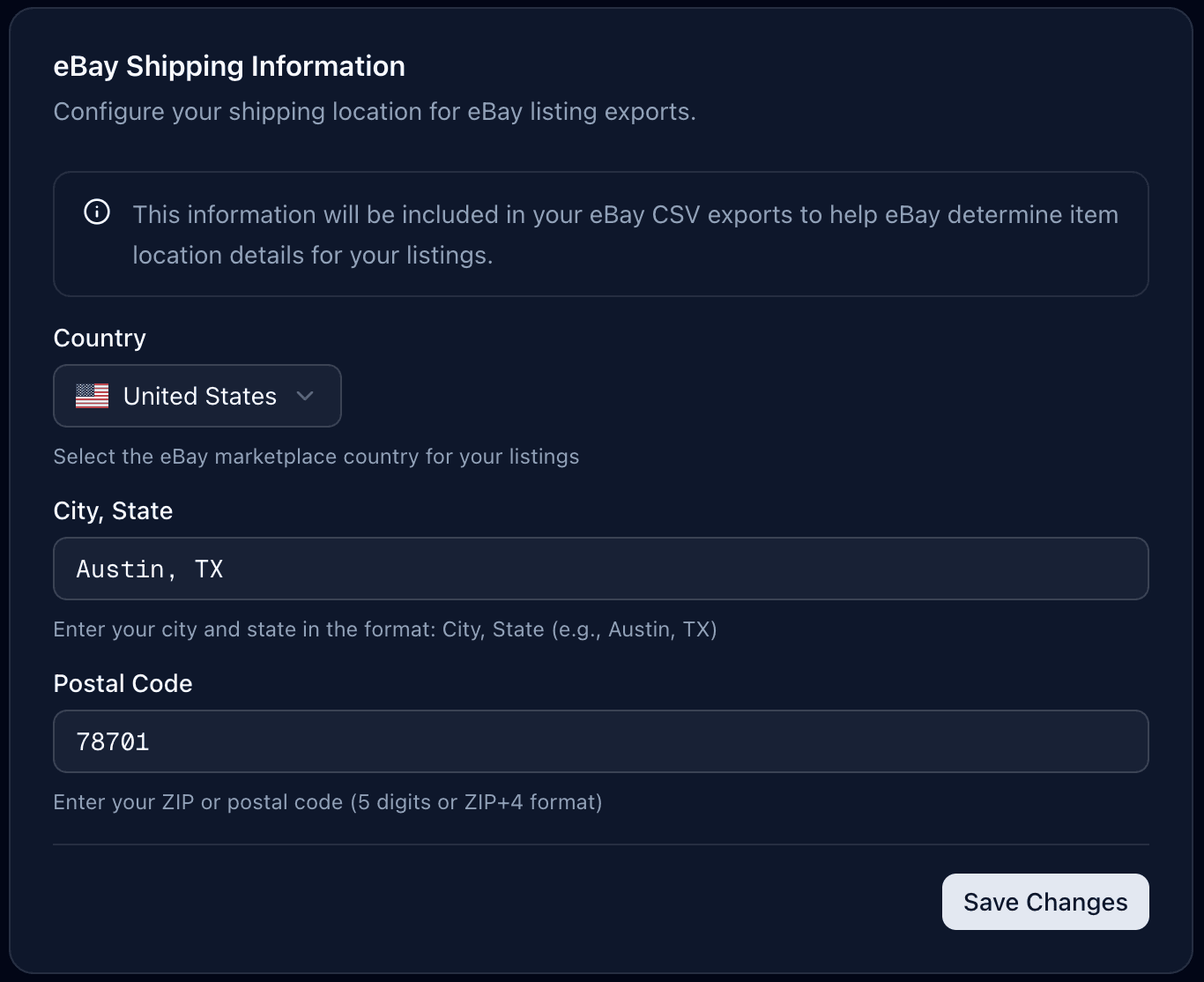
💡 Tip: Make sure to save your changes after selecting your country.
Connect Your eBay Account
To list your cards on eBay, you'll need to connect your eBay account. This allows TCGPilot to create and manage listings on your behalf.
Steps to connect:
- 1.
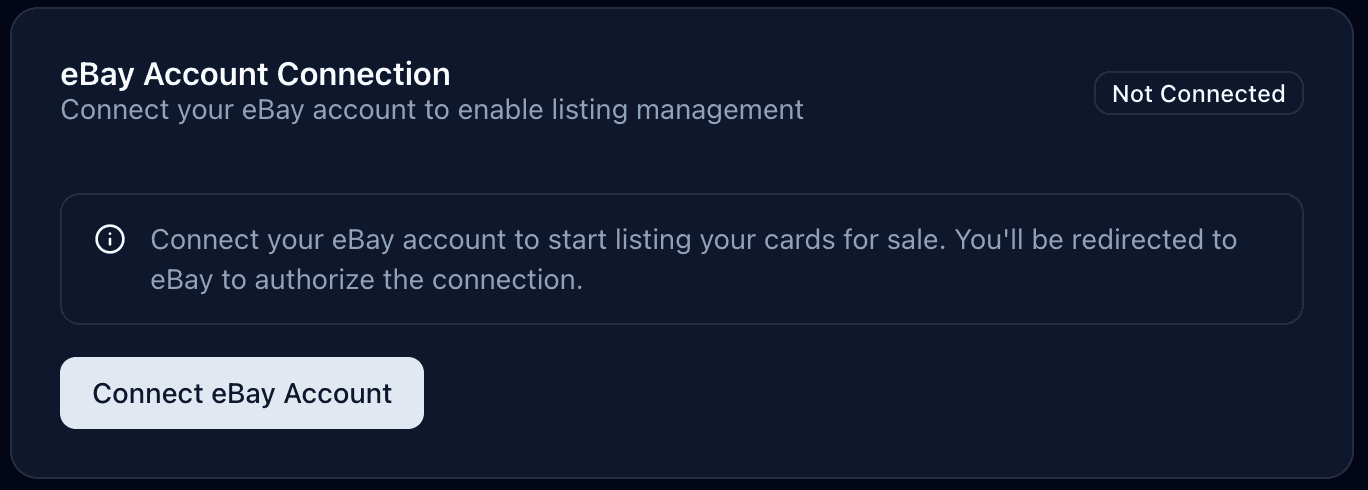
- 2.Click the Connect eBay Account button
- 3.You'll be redirected to eBay where you need to review the permissions
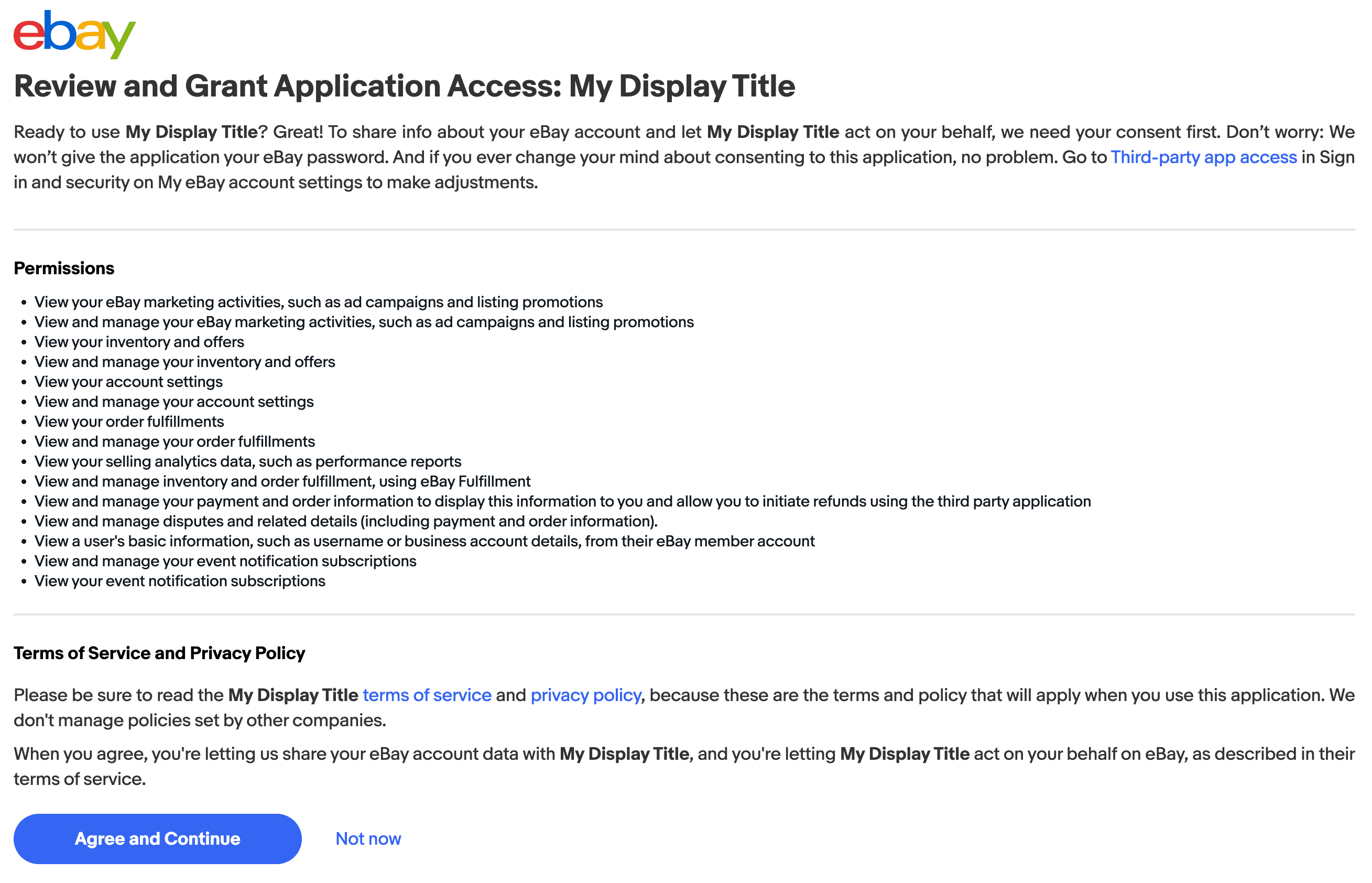
- 4.Click Agree and Continue to grant TCGPilot access
- 5.eBay will redirect you back to TCGPilot to confirm the connection was successful
💡 Tip: Make sure you're logged into the correct eBay account before connecting. The connection is secure and you can disconnect at any time from the settings page.
Set Up Your Warehouse Location
eBay requires you to have a warehouse or office location set up before you can create listings. This information helps buyers understand where items will ship from.
Required information:
- •Location Name - A name to identify this location (e.g., "Main Warehouse", "Home Office")
- •Full Address - Complete address including street, city, state/province, and postal code
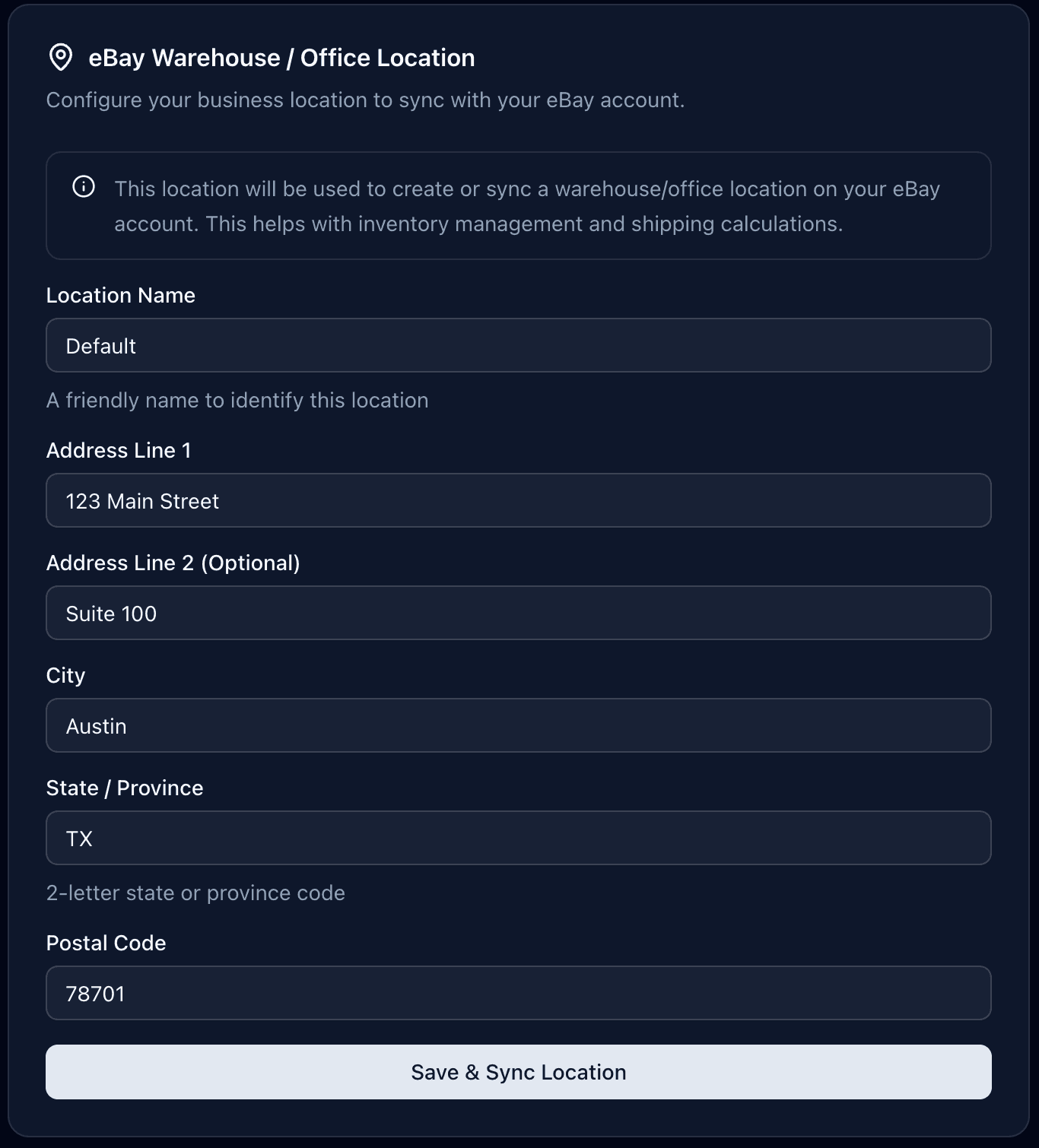
Once you've entered all the information, click the Save & Sync button to save your location and sync it with eBay.
💡 Tip: Make sure the address is accurate as it may be visible to buyers and is used for shipping calculations.
Configure eBay Business Policies
Business policies define how your eBay listings handle payments, returns, and shipping. You'll need to configure these before creating your first listing.
Required policies:
- •Payment Policy - Select how you'll accept payments from buyers
- •Return Policy - Choose your return policy preferences
- •Default Shipping Policy - Set your standard shipping options
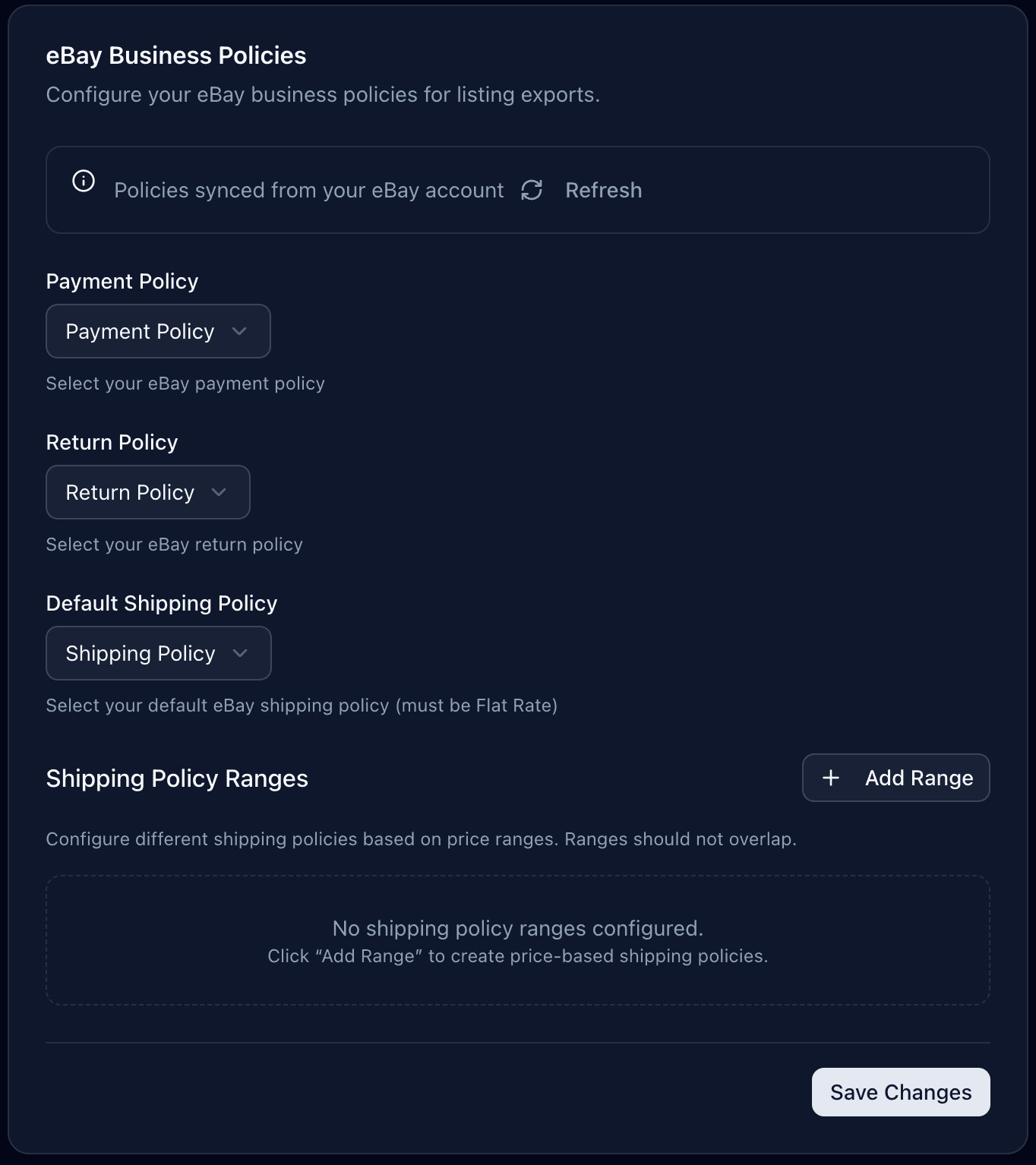
Optional: Price-Based Shipping Policies
For more advanced shipping management, you can configure multiple shipping policies based on price ranges. This allows you to offer different shipping options for low-value versus high-value items.
For example: Items under $20 might use eBay standard envelope shipping, while items over $20 could use tracked shipping with insurance.
Once your shipping policies are in place, you can set up automated pricing rules that factor in your actual shipping costs. Learn how to configure pricing rules →
💡 Tip: These policies are synced from your eBay account. If you need to create new policies, you can do so directly in your eBay Seller Hub and then refresh them here.