Grading Submissions
Track cards sent for professional grading, fetch slab photos automatically, and list graded slabs on eBay. All in one workflow.
Before you start
Your eBay account must be connected and your business policies configured (see Quick Start). To auto-fetch PSA images you also need a PSA Public API token. Set it under Settings → PSA API.
Create Submission
Name it, log grading fees and shipping.
Add Cert Numbers & Photos
Enter cert numbers and fetch or upload slab photos.
Set Listing Prices
Pull eBay comps for graded copies and set a price per card.
List on eBay
Create graded listings with one click.
Create a Grading Submission
Navigate to eBay Tools → Grading Submissions and click New Submission. A new submission is created with a default name. Click the name to rename it.
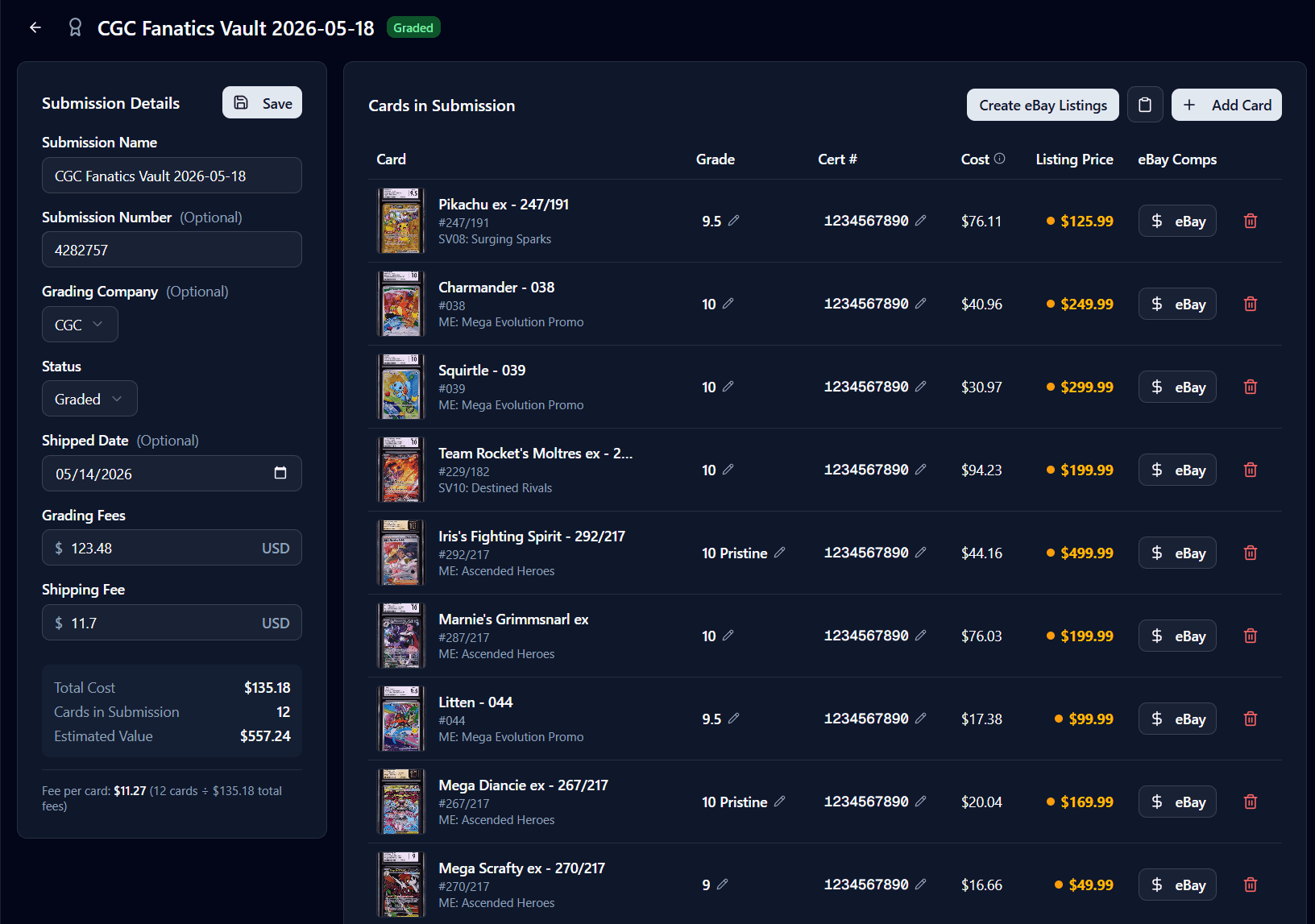
Fill in submission details
Add cards to the submission
Use the search box in the Cards in Submission panel to find cards already in your inventory. Select a card and click Add to include it. Cards must already exist in a collection. Scan them with AI recognition first if needed.
Add Cert Numbers & Slab Photos
Once your cards are returned graded, enter the certificate number for each card. The cert number is printed on the slab label and on the grading company's website.
Entering cert numbers and grades
Click the Cert # cell for a card and type the cert number, then press Enter or click away to save. The Grade column works the same way. enter the grade (e.g. 10 or 9.5).
Auto-fetching PSA images
Auto-fetch is currently supported for PSA. Support for CGC and other grading companies is on the roadmap.
For PSA cards with a cert number entered, click the fetch icon on the row to pull the front and back slab images and grade directly from PSA. Use the Fetch All button in the toolbar to fetch images for every PSA card in the submission at once. The progress counter shows X/N as it runs.
PSA's free tier allows 100 API calls per day. Each fetch uses 2 calls (images + cert info). Set your PSA API token under Settings → PSA API.
Uploading slab photos manually
Click the thumbnail in the card row to open the photo preview. Use the Upload Front and Upload Back buttons to add your own slab photos.
Research Prices & Set Listing Prices
eBay Comps for graded cards
Click eBay in the eBay Comps column to see an average of current active listings and a link to eBay sold listings for that card in graded condition.
Setting a listing price
Click the Listing Price cell and type a price, then press Enter to save. An amber dot appears when a price override is active. If no price is set, TCGPilot calculates a price from the card's market value using your pricing rules.
Understanding the Cost column
The Cost column shows your all-in cost per graded card:
Cost = Card purchase cost + (Grading fees + Shipping) ÷ Number of cards
If a card was gifted or has no purchase cost, only the grading fee share is shown. This gives you an accurate cost basis for calculating profit on each graded sale.
Create eBay Listings
Once each card has a grade, cert number, slab photos, and a listing price, click Create eBay Listings in the toolbar. TCGPilot will create inventory items and offers for all eligible cards.
Eligibility requirements
Scheduling
If you have a listing schedule configured under Settings → eBay Listing Scheduling, graded listings will respect it and start at the scheduled time.
Tips & Best Practices
- •Set up a dedicated Slab Shipping Policy in Settings → eBay Business Policies. Graded slabs usually need extra padding, insurance, and tracking. A separate policy keeps your shipping rates accurate.
- •The Cost column reflects the true grading cost even for gifted cards (zero purchase price). Use it alongside the listing price to confirm you're pricing above your cost basis.